FEATURE GUIDE / FILES & VERSIONS
Keep the file yours.
Create a canvas, open common formats, save a lasting PNG and recover local working versions.
FILE · IMAGE
Start with the right canvas.
Choose New canvas from File, the tab plus, or the welcome screen. Start from Square, Landscape, Portrait or Screen, or set exact width and height in pixels, millimeters, centimeters or inches. Set PPI with its slider or exact field. Pick a transparent background, a solid background from the current background swatch, or an image file resized to the chosen canvas. The source file is preserved.
Later, Image → Resize image resamples raster content. Image → Resize canvas changes the bounds and keeps pixels at the top left. Both dialogs preserve aspect ratio by default. Rasterize editable text and vector objects before image or canvas resize. Crop keeps those object sources editable.
Crop with a preview.
Choose Crop or press C; Image → Crop canvas opens the same tool. Drag a rectangle. A darkened surround previews the part you will remove, while the image pixels stay unchanged.
Drag a corner handle, focus it and press Arrow keys (Shift for ten pixels), or enter exact X, Y, Width and Height values. A current selection supplies the initial rectangle. Click Apply or press Enter to crop every layer, including hidden ones, in one undo step. Cancel or Escape leaves the canvas unchanged.
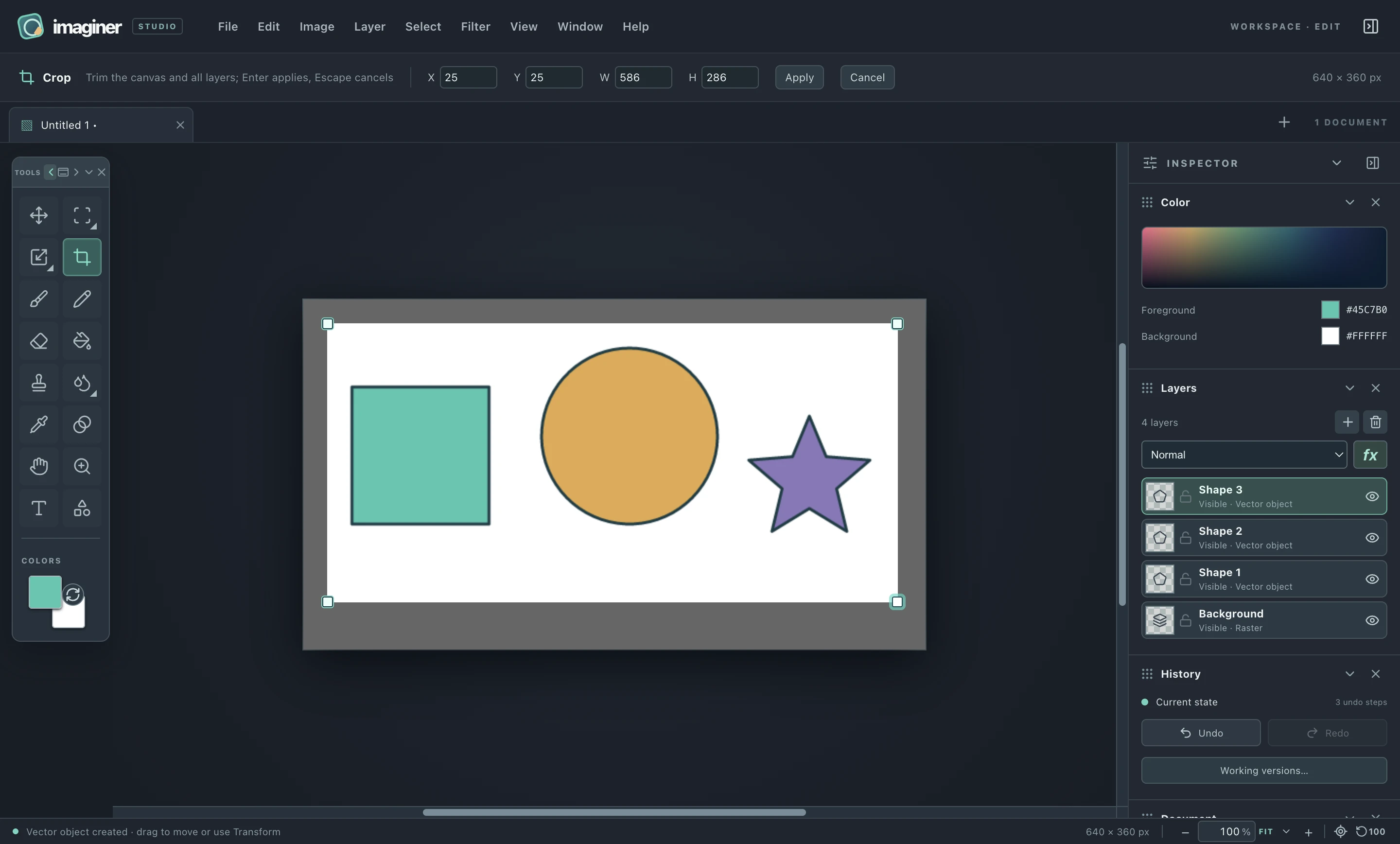
Locked layers must be unlocked before applying. Pixel rows are copied exactly; no scaling occurs. Guides shift with the new origin, and text and vector objects keep their editable sources even where the crop hides part of them. Undo and Redo restore both dimensions and layer content.
FILE
Open and export deliberately.
File → Open images accepts JPEG, PNG, GIF, WebP, BMP and AVIF and can open multiple files. At this stage, animated GIF and WebP open as a single frame.
File → Save as PNG writes the visible composite as a flattened image. Imaginer warns when a layered document would lose editability in PNG. Save as PNG is an explicit action; periodic working versions never overwrite the source image or exported PNG.
PNG contains pixels, not editable layers, text or vector sources or effect settings. Working versions retain those inside Imaginer until the document closes.
FILE / LAYERED EXCHANGE
Exchange raster layers.
Open images also accepts Photoshop PSD and OpenRaster (.ora). Supported flat raster layers retain order, visibility, opacity and blending. PSD accepts all 27 current layer modes; OpenRaster supports its 15 baseline blend modes. PSD also preserves supported locks, resolution and guides.
Choose File → Save editable Photoshop PSD… or Save editable OpenRaster… for a lasting layered file. Editable text and vector objects, clipping and alpha-mask relationships, effects and nondefault fill are currently rejected when the exporter cannot preserve them. OpenRaster also rejects unsupported modes, locks and guides. Follow the style-export workflow before exporting a styled document.
A PSD with unsupported features may offer an explicit Open flattened preview choice when its merged image is usable. This loses editable layers, keeps the source unchanged and warns about 16-bit reduction or unapplied color profiles where relevant.
EDIT / PLUGINS
Add a local plugin.
Edit → Settings… → Plugins installs .imgplugin packages. Enabled format plugins add explicit Open with and Export with actions; pixel plugins appear in the toolbox and Filter menu. Disable or remove a package from the same settings page.
Plugins run in a time-limited worker without native file or network access, but the worker has no strict memory quota. Install packages from developers you trust. Plugin exports must support new appearance properties explicitly; unsupported layer modes, fill and effects report an error.
FILE · EDIT
Return to a working state.
Edit → Settings… → General sets the local working-version interval and can turn it off. File → Working versions… shows saved snapshots of the open document, including layers, editable text and vector shapes, object transforms, clipping and alpha-mask relationships, blend modes, fill, effects, dimensions and guides. Older upper-alpha masks migrate without changing their appearance. Save a version immediately there or restore an earlier one.
File → Recover working copies… offers snapshots left by an interrupted session. Closing a document normally discards its working versions. A canceled dirty-document close leaves that document and its versions open.
EDIT
Undo image changes.
Undo and Redo track changes to layer pixels, objects and the layer stack, including applied filters and restored working versions. They do not record tool choice, selection, guides, view position, panel layout, color swatches or preferences.