Move the view
Choose the Hand tool and drag from the canvas or empty workspace. You can also use the horizontal and vertical scrollbars at any zoom.
FEATURE GUIDE / WORKSPACE
Navigate documents, zoom and pan freely, and arrange panels and shortcuts around the way you work.
VIEW
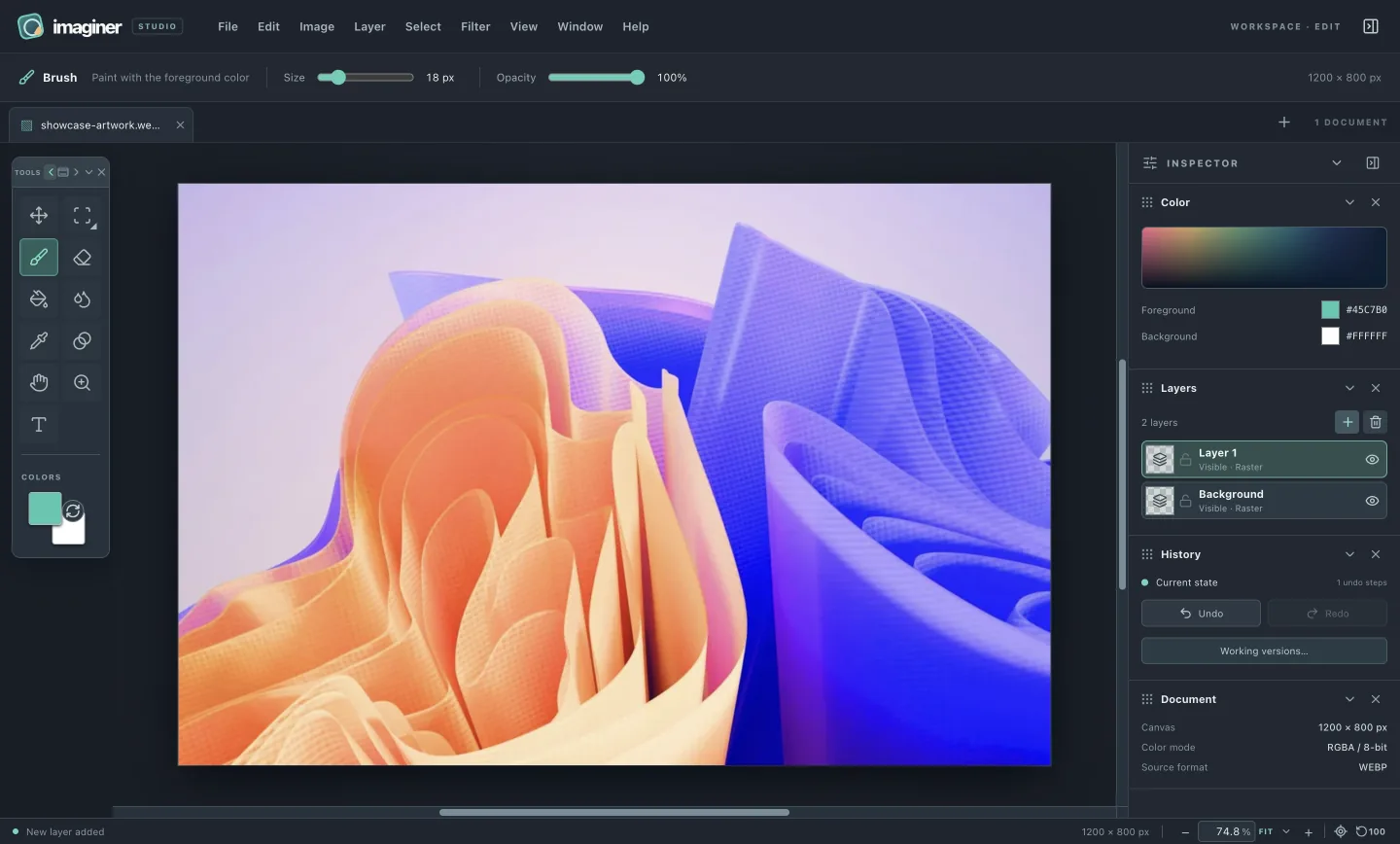
The image can move even when it fits completely inside the window. This makes it easy to place small canvases where you want them while you work.
Choose the Hand tool and drag from the canvas or empty workspace. You can also use the horizontal and vertical scrollbars at any zoom.
Scroll over the canvas to zoom toward your pointer. The status bar accepts a typed percentage, and its menu offers Fit and common presets.
The center pictogram moves the image center into the viewport center without changing zoom.
The adjacent 100 control centers the image and sets zoom to 100%.
Panning and centering do not change pixels, selection or undo history.
WINDOW
Tools, Inspector, Color, Layers, History and Document widgets can be closed and reopened. Drag a widget header to move it. Nearby edges snap together; hold Alt while dragging to bypass the snap. Focus a header and use Arrow keys for one-pixel adjustment, or Shift with Arrow keys for ten pixels.
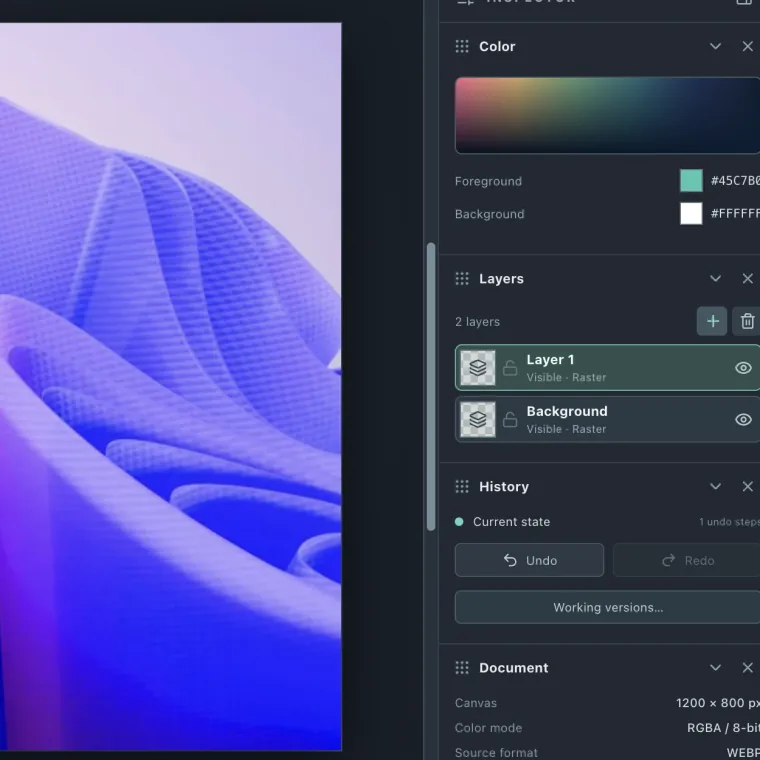
Use the right-side arrow on a header to collapse its contents. The Window menu restores closed widgets, collapses or expands each one, opens the document list and places the Tools palette on the left, right or in a floating position. Every built-in tool is also in the Tools menu. These menu actions can have shortcuts.
EDIT
Open Keyboard in Settings to record, clear or restore shortcuts for built-in tools, menus and widget actions. A conflict is reported before a binding can replace another action. Your assignments are stored locally and appear in app menus and tooltips. General, Keyboard and Plugins also open directly from Edit.
Imaginer-shortcuts.json file. On another installation, choose Import JSON and select the file. The map changes only when the entire file is valid and conflict-free.Switching tools or changing panel layout is a workspace action, so it does not add an image undo step.
FILE
Open more than one image at a time. Tabs fill the strip and then scroll. The square arrow at the right opens a vertical list of open documents; choose a document there or close it using its X. Close all checks dirty documents individually, so declining a save prompt leaves that document open.