
Keep a rectangle.
Drag corner or edge handles. Crossing an opposite anchor flips the content. Shift follows the starting proportions; Command/Ctrl scales around the center.
FEATURE GUIDE / TRANSFORMS
Scale, distort, skew or warp the active object or selected pixels, with a visible preview and a clear way back.
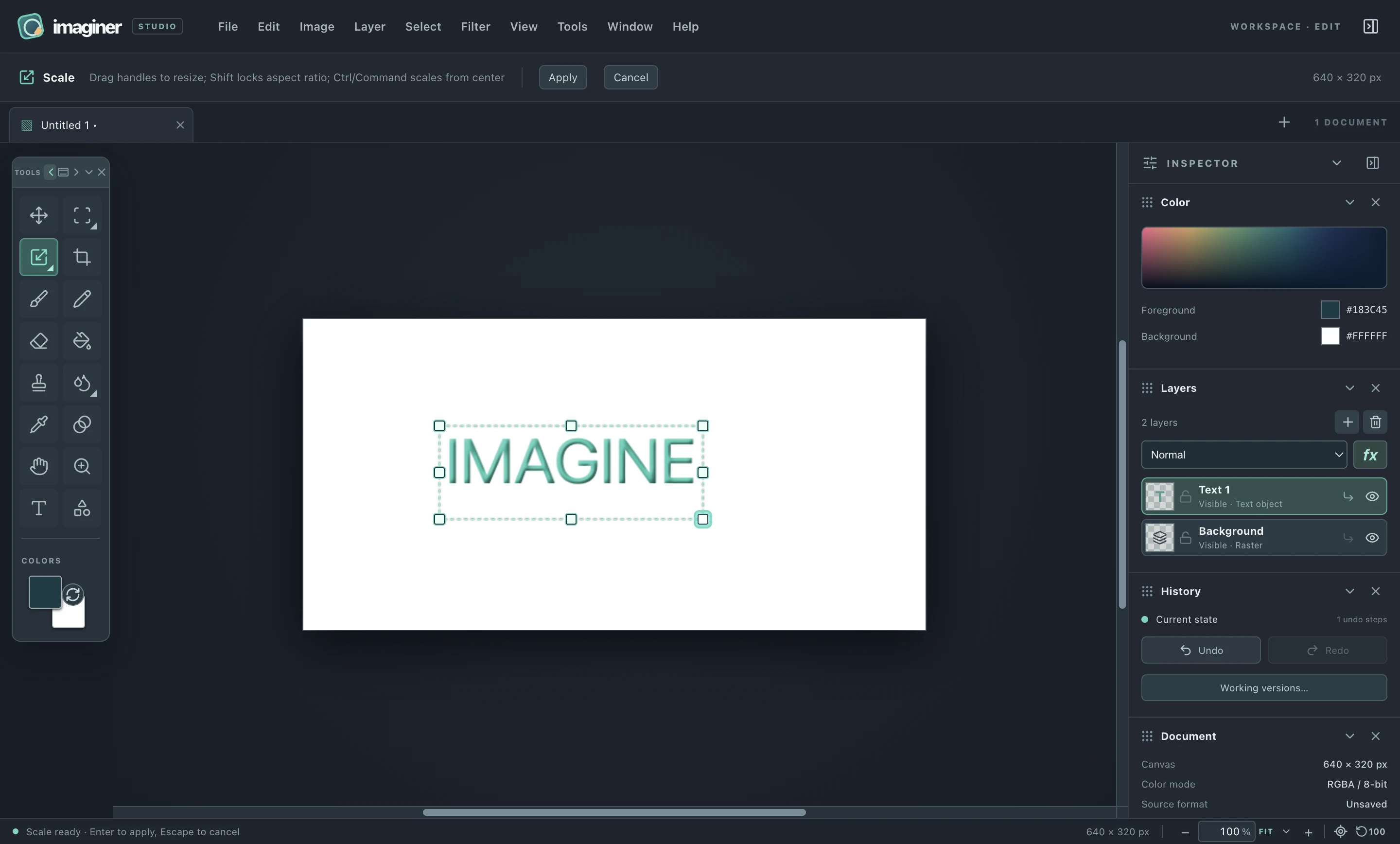
Select an unlocked layer. With an editable text or vector layer active, transforms affect its object frame and keep the source editable. Shapes regenerate pixels from their geometry. On a raster layer, an active selection transforms its pixels; without a selection, the transform follows the layer’s content bounds.
Press Command + T on Mac, or Ctrl + T on Windows/Linux, to open Scale. Right-click or press and hold the Transform toolbox slot, or focus it and press ArrowDown, to choose Scale, Distort, Skew or Mesh Warp.
Drag corner or edge handles. Crossing an opposite anchor flips the content. Shift follows the starting proportions; Command/Ctrl scales around the center.
Pull a single corner to change the quadrilateral. Command/Ctrl pairs opposite corners; Shift constrains the change to the starting proportions.
Move an edge parallel to its opposite edge. Command/Ctrl makes paired movement; Shift constrains it to the starting proportions.
Move nodes or drag within the 3 × 3 cell surface. Nearby pixels follow with local falloff. Command/Ctrl mirrors a pull; Shift follows the starting proportions.
Modifier constraints update during a live drag. Focus a handle and use Arrow keys for one-pixel changes, or Shift + Arrow keys for ten-pixel changes.
The canvas previews a transform during each drag. Released gestures create undo checkpoints. Enter or the tool’s Apply button finishes the session; Escape or Cancel abandons the whole session, restores its starting state and clears the selection and handles.
Edit → Transform also offers horizontal/vertical flips and clockwise, half-turn or custom-angle rotation. A custom angle starts a cancelable preview. Working-version saves pause during an active transform session and resume after Apply.
Scaling the layer does not scale a 3 px stroke setting into 6 px. Reopen Blending when you want a different border or shadow size after a transform.
Rendered content is clipped by the canvas. A raster move wholly beyond it reports an error and preserves the document. Effects regenerate from the transformed alpha and stay subject to the 16-million-pixel spatial working-region limit.
PNG saves the visible result. Working versions retain editable text and vector transforms and effects during the session; they are removed on normal close. Portable PSD/ORA export does not currently preserve editable text, vector sources or effect definitions.